Unlock Your Amazon Fire Tablet: Mastering Fire Toolbox for Google Play, Custom Launchers & More
Amazon’s Fire tablets are incredible value devices, often priced under $100. However, their default software is locked down, missing Google Play and cluttered with ads. Enter Fire Toolbox — a free Windows utility that lets you hack your Fire tablet to install Google Play, change default launchers, remove lockscreen ads, and tweak system behavior. This Q&A guide answers the most common questions about supercharging your Fire tablet.
1. Why would I want to hack my Amazon Fire tablet?
Hacking your Fire tablet with Fire Toolbox unlocks its true potential. By default, Fire tablets run Amazon’s Fire OS, which lacks the Google Play Store, uses Amazon’s app store (with fewer apps), and displays lockscreen ads on lower‑priced models. After hacking, you can:
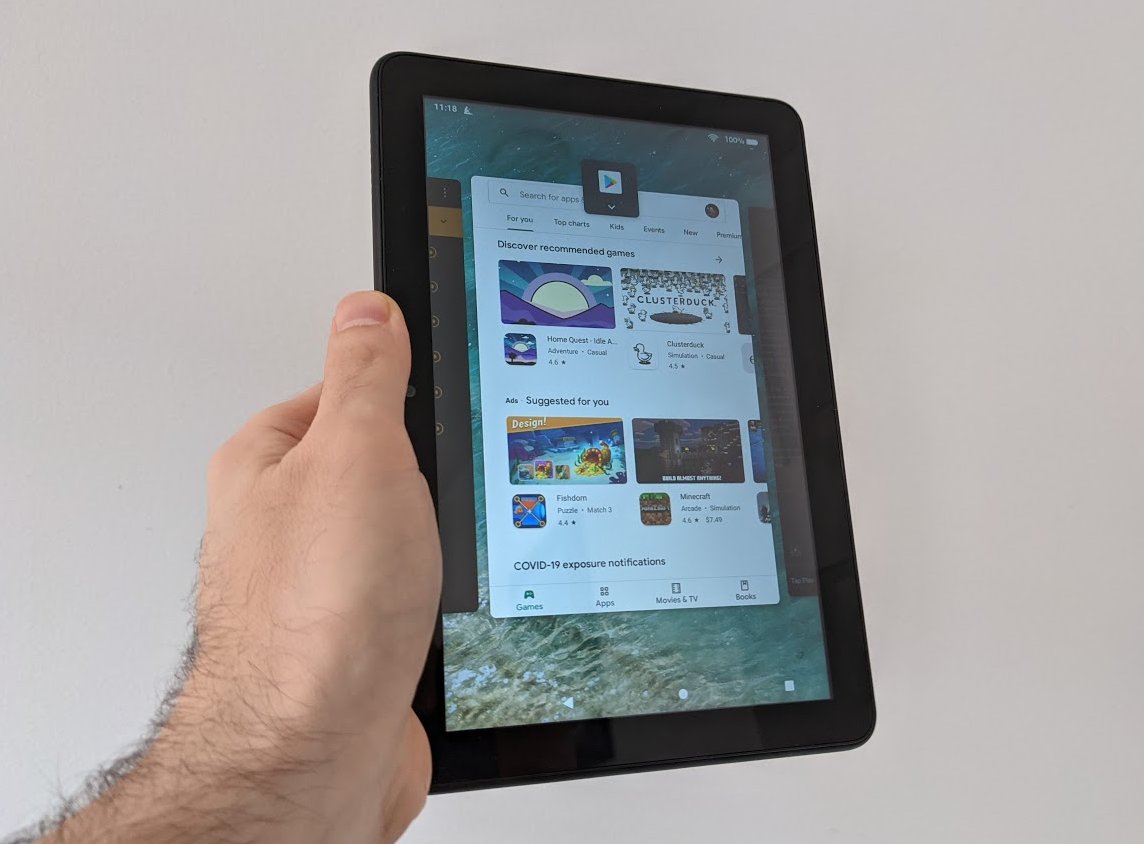
- Install Google Play — access millions of Android apps, including Gmail, Chrome, and YouTube.
- Change the default launcher — replace Amazon’s cluttered interface with a clean Android launcher like Nova Launcher.
- Remove lockscreen ads — enjoy an ad‑free experience without paying the extra fee.
- Modify system behavior — disable OTA updates, change navigation buttons, or enable picture‑in‑picture.
These tweaks transform a budget tablet into a versatile Android device, making it perfect for media consumption, productivity, or even light gaming.
2. What exactly is Fire Toolbox, and how does it work?
Fire Toolbox is a free, Windows‑only application created by developer Datastream33. It communicates with your Fire tablet via ADB (Android Debug Bridge) over USB. The toolbox provides a graphical interface with one‑click tools to:
- Install Google Play Services (Play Store, Google Play Games, etc.)
- De‑bloat the tablet by disabling Amazon apps like Alexa, Silk Browser, and Amazon Photos.
- Replace the default launcher with a third‑party one (e.g., Nova Launcher, Lawnchair).
- Disable or enable system animations, navigation gestures, and the status bar.
- Remove lockscreen ads permanently.
It runs on Windows 7 through 11 and supports all modern Fire tablet models (Fire 7, HD 8, HD 10, and Fire Max 11). The tool is updated frequently and is considered safe when used carefully — it doesn’t require root access.
3. How do I install Google Play on my Fire tablet using Fire Toolbox?
Installing Google Play is one of the most popular hacks. Here’s the simplified process:
- Prepare your tablet — Go to Settings > Device Options > About Fire Tablet, tap “Serial Number” 7 times to enable Developer Options. Then go back to Settings > Developer Options and enable USB Debugging.
- Connect to PC — Plug your tablet into your Windows computer via USB. If prompted on the tablet, tap “Allow USB debugging.”
- Launch Fire Toolbox — The tool should detect your device. If not, ensure ADB drivers are installed (the toolbox can help).
- Select “Google Services” — From the main menu, choose the option to install Google Play. Fire Toolbox will download the necessary files and push them to your tablet.
- Reboot — After installation, reboot your tablet. You’ll find the Play Store in your app drawer. Sign in with your Google account.
That’s it! The entire process takes about 10 minutes. Note that on some models, you may need to run a “fix” tool within Fire Toolbox if Play Store shows “Device is not certified.”
4. Can I change the default launcher on my Fire tablet, and why should I?
Yes, absolutely. Amazon’s Fire OS launcher is heavy, with a “For You” tab full of content suggestions and ads. Changing the launcher gives you a stock‑Android experience: a clean home screen, app drawer, and better customisation. Popular launchers include Nova Launcher, Lawnchair, and Microsoft Launcher.
Using Fire Toolbox, you can set your chosen launcher as the default with a single click. The toolbox also offers options to:
- Disable the “Home button” long‑press that tries to revert to the Amazon launcher.
- Hide the navigation bar or use gesture controls.
- Add a custom dock or widgets.
Important: Some Fire OS updates may attempt to reset your launcher. Fire Toolbox includes a “OTA Update Disabler” to prevent that — but weigh the security risks of stopping updates.
5. Is it possible to remove lockscreen ads without paying Amazon?
Yes, using Fire Toolbox you can remove the lockscreen ads (called “Special Offers”) that come with the cheaper Fire tablet models. Normally Amazon charges a fee (around $15) to remove them, but the toolbox offers a free alternative.
How it works: The tool modifies a system setting that controls the ad provider. It disables the “com.amazon.kindle.kso” package responsible for lockscreen ads. After applying the hack, reboot your tablet — the lockscreen will show a generic Amazon or stock Android wallpaper instead of ads.
Note: This hack is not officially supported by Amazon. If you ever factory reset or update the tablet, the ads may return, and you’ll need to run the tool again. However, for most users, it’s a permanent fix as long as you don’t interfere with the modification.
6. Is it safe to use Fire Toolbox? What are the risks?
Fire Toolbox is widely considered safe by the tablet hacking community when used correctly. It does not require root access — it merely uses ADB commands that are allowed by the tablet’s settings. However, no modification is 100% risk‑free. Potential risks include:
- Bricking — Extremely rare with this tool, but possible if you disable critical system components. Stick to the recommended options.
- Warranty — Modifying your device technically voids Amazon’s warranty. However, a factory reset usually erases all traces of the hack.
- OTA updates — Amazon may push updates that break the hack. The toolbox includes an OTA disabler, but disabling updates means you miss security patches.
- Performance — Over‑debloating or installing incompatible launchers can cause slowdowns or crashes.
Best practice: Backup your data before modifying anything. Follow the instructions carefully, and don’t tamper with options you don’t understand. The community is active on XDA‑Developers and Reddit if you need help.
7. What other useful tweaks can Fire Toolbox do?
Beyond the big three (Google Play, launcher, ads), Fire Toolbox offers a wealth of system modifications:
- De‑bloat — Uninstall or disable Amazon apps like Alexa, Prime Video, Music, Books, and Silk Browser to free up storage and reduce background activity.
- Navigation options — Switch from gesture navigation to three‑button layout, or disable the navigation bar entirely and use a third‑party gesture app.
- Disable OTA Updates — Permanently block automatic system updates so your hacks stay intact.
- Screen density adjustment — Change DPI to fit more content on the screen or make text larger.
- Picture‑in‑Picture — Enable PiP mode for apps like YouTube or Chrome (even on Fire OS versions that restrict it).
- Status bar control — Hide unwanted icons (e.g., Bluetooth, alarm) or change the clock format.
Each of these can be applied with one or two clicks. The toolbox also includes a “Restore” option to revert any change — so you can experiment safely.
Related Articles
- Data Normalization: Use Cases, Pitfalls, and Strategic Trade-offs
- Data Normalization Wars: How Conflicting Metrics Are Sabotaging AI Governance
- React Native 0.84: Hermes V1 Default, Faster Builds, and Legacy Removal
- YouTube Overhauls Mobile App Navigation: Subscriptions Tab Moved in Sweeping Redesign Test
- Understanding Data Normalization: When and Why It Matters
- How to Resolve HEIC Image Display Problems in Ubuntu 26.04 LTS
- Android 17 QPR1 Beta 3 Revamps Media Switching with Card-Style Carousel
- Building VR Apps with React Native: Official Support for Meta Quest