Turn Your Dusty Smartphone into a Dedicated Smart Home Hub
That old smartphone languishing in a drawer isn't just a relic of bygone tech glory. With a working screen and solid Wi-Fi, it holds untapped potential as a brilliant smart home controller—a command center that can rival any purpose-built hub. This guide walks you through every step to transform your forgotten device into a powerful, always-on smart home lieutenant. No special skills required, just a bit of time and the steps below.
What You Need
- An old smartphone (iPhone or Android) with a functioning touchscreen, battery, and Wi-Fi connection.
- Charging cable and power adapter (preferably the original or a high-quality third-party).
- A stable Wi-Fi network.
- Optional: a wall or cabinet mount to keep the phone accessible and tidy.
- Smart home apps for your devices (e.g., Philips Hue, Google Home, Amazon Alexa, Home Assistant).
- A secondary smartphone or computer for initial setup.
Step-by-Step Guide
Step 1: Prepare the Old Phone
First, ensure the device is ready for its new life. Perform a factory reset to wipe all personal data and start fresh. On iPhones, go to Settings > General > Transfer or Reset iPhone > Erase All Content and Settings. Android users navigate to Settings > System > Reset options > Erase all data (factory reset). After the reset, skip the initial setup prompts like iCloud or Google account sign-in—you want a clean slate. If you intend to use the phone without a SIM, put it in Airplane Mode once booted to block cellular calls and conserve battery.
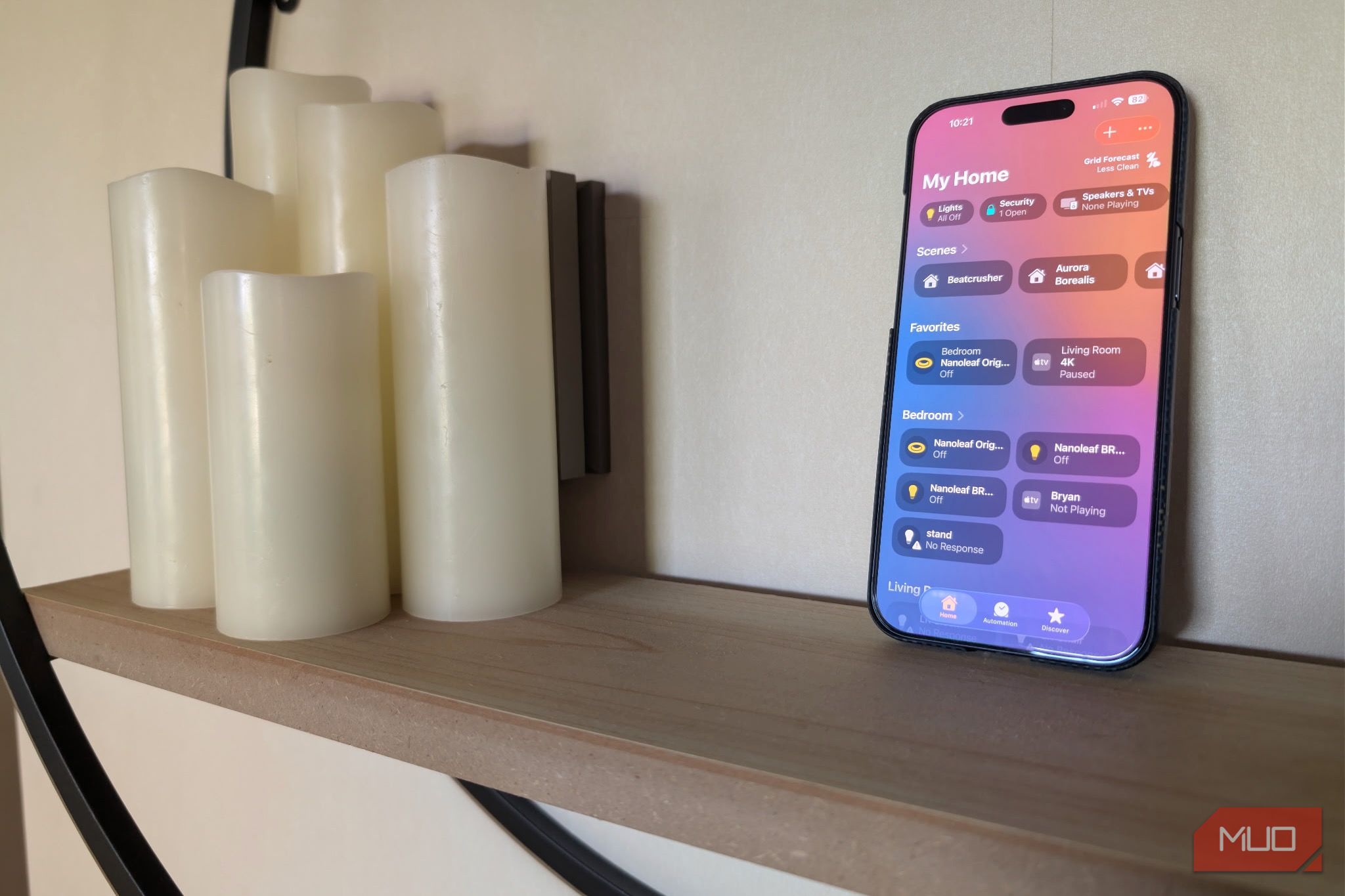
Step 2: Install and Configure the Core Smart Home Apps
Now, turn the phone into a universal remote. Using a secondary device, download the same smart home apps you use on your daily driver—like the official apps for your lights, thermostat, locks, or speakers. On the old phone, install them via the App Store or Google Play. Log into each app with your existing account credentials. For maximum convenience, consider installing an all-in-one app like Home Assistant or SmartThings if your devices are compatible, or simply use the native Home app on iOS or Google Home on Android. Take this opportunity to create or import your home scenes and groups (e.g., “Good Night” turning off all lights).
Step 3: Design a Clean, Kid-Proof Interface
A smart home controller needs a simple, intuitive layout. On both platforms, you can pin the most-used controls to the home screen or enable a kiosk mode. For iPhones, use the Shortcuts app to create custom icons that launch specific scenes. On Android, try a third-party launcher like Nova Launcher to hide all other apps and display only smart home widgets. Disable notifications from every app except the smart home ones to avoid clutter. Enable Guided Access (iOS) or Screen Pinning (Android) to lock the phone into a single app, preventing accidental exits or launcher modifications.
Step 4: Optimize Power and Display Settings
Since this device will likely be plugged in 24/7, prevent battery swelling by enabling Optimized Battery Charging (iOS) or Battery Care (Samsung). Keep the screen brightness low—auto-brightness off, fixed at 30%—to reduce strain and energy use. Set the Display Sleep to “Never” or a very long timeout (e.g., 10 minutes) so the screen stays on while you interact. To save power when idle, set the Auto-Lock to 30 seconds, and rely on tap-to-wake or motion sensors to wake the phone when you approach. If your phone supports it, enable Always-On Display showing only the smart home app time.
Step 5: Choose a Permanent Location and Mount
For a dedicated controller, decide where it lives. Popular spots: near the main entrance (to control lights and locks coming in), in the kitchen (for cooking timers and music), or by the bedside (for bedtime scenes). Use a wall mount that holds the phone securely and allows access to the charging port. Magnetic mounts (with a thin metal plate on the case) work well. Alternatively, a simple stand on a shelf does the trick. Ensure the location has a power outlet nearby—wall warts with USB ports are ideal for hiding the cable. If you want a completely wireless look, install a recessed outlet behind the mount.
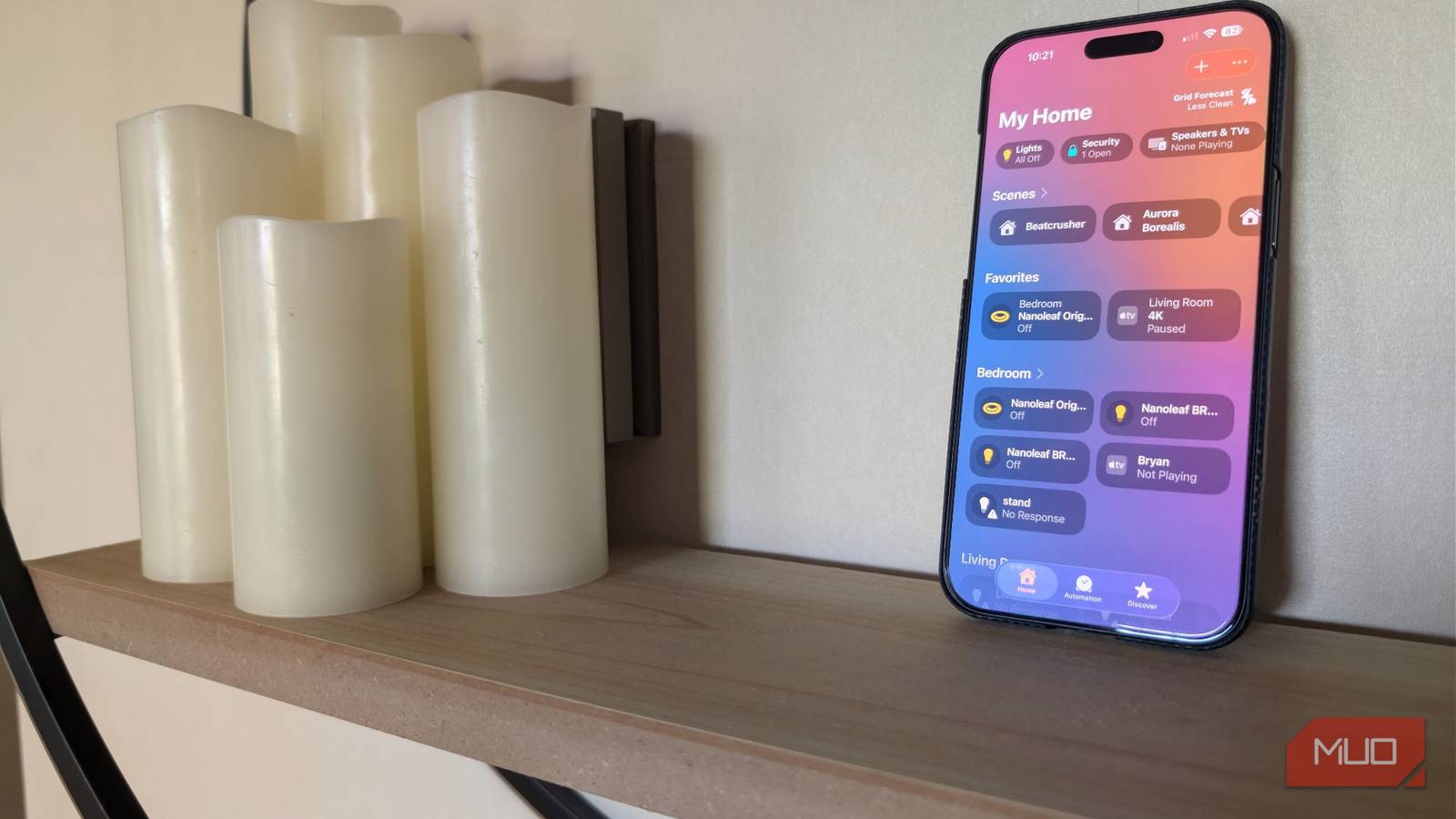
Step 6: Set Up a Dedicated User (Optional but Recommended)
To keep your old phone secure and separate from personal data, create a secondary Apple ID or Google account solely for smart home management. This way, if the device is lost or accessed by a guest, they won’t see your messages, photos, or emails. Use this account when installing apps and logging in. For Home Assistant, set up a restricted user with limited access to the controls. If you trust your household members, you can skip this step, but it’s a privacy bonus.
Step 7: Add Voice Control (If Supported)
If your old phone supports a voice assistant (Siri, Google Assistant), enable it for hands-free operation. Go to Settings > Siri & Search or Google App > Settings > Voice and activate “Hey Siri” or “Ok Google”. Note that on older iPhones, “Hey Siri” may require being plugged in. Test your most used commands, like “Turn off living room lights.” For privacy, consider disabling voice activation when the phone is locked to prevent accidental triggers.
Step 8: Establish a Maintenance Routine
Your new smart home controller isn’t set-and-forget forever. Once a month, reboot the phone to clear memory leaks and refresh app connections. Check for app updates in the store—outdated software can cause glitches. If the battery starts to swell (bulging screen), discontinue plugged-in use immediately. Also, clean the screen with a microfiber cloth regularly, as a smudged display hinders usability. Every quarter, review if you need to add new devices or scenes, and remove unused apps to keep performance snappy.
Tips for Success
- Use a smart plug to control the old phone’s charger. This lets you remotely power cycle the phone if it freezes.
- Enable lock screen widgets for quick toggles—no need to unlock the phone for basic commands.
- If using an iPhone, avoid iCloud Keychain on this device; manually enter Wi-Fi passwords to keep credentials separate.
- Test water resistance if the phone will be in a kitchen or bathroom—most old phones lack IP ratings, so keep them dry.
- Label the charging cable with a bright tag so family members don’t unplug it.
- Consider a cheap rubber case to cushion accidental drops from the mount.
- For Android phones, use “Smart Lock” with a trusted location so the phone stays unlocked at home.
- Don’t use a damaged battery. If the phone struggles to hold a charge, replace it (if possible) or recycle the phone safely.
Related Articles
- Google Home's Gemini AI Gets Powerful Upgrade: Multi-Step Tasks, Event Management, and Natural Language Improvements
- From Prototype to Product: A Developer's Guide to Google's AI Glasses Powered by Gemini
- 4 Must-Watch HBO Max Shows to Amp Up Your Week (May 19-24)
- Industrial Automation Under Siege: Worms Surge in Q4 2025 Email Attacks
- 10 Key Insights Into the New Era of Intrusion Detection: SnortML, Agentic AI, and Context-Aware Security
- 10 Reasons Why DJI, Once the King of Consumer Drones, Now Faces a Global Sales Crisis
- 7 Game-Changing Insights from the Humanoid Robot That Won a Marathon Using Smartphone Tech
- Coding Agents Get New Maintainability Sensors: Static Analysis Framework Revolutionizes Code Quality