How to Set Up and Use the AWS MCP Server for Secure AI Agent AWS Access
Introduction
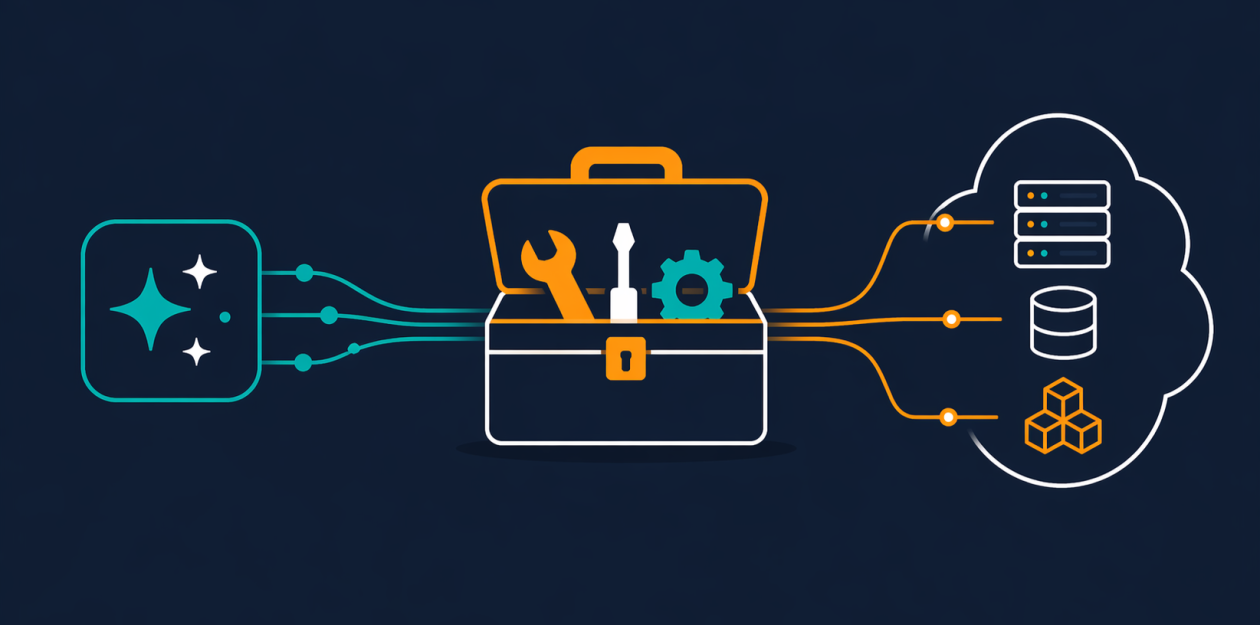
AI coding agents are powerful, but giving them safe, up-to-date access to AWS has been a challenge. The AWS MCP Server – now generally available as part of the Agent Toolkit for AWS – solves this by providing a managed remote Model Context Protocol (MCP) server. It gives agents a fixed set of tools to call thousands of AWS APIs, retrieve current documentation, and even run sandboxed scripts – all while respecting your existing IAM permissions. This guide walks you through setting it up and using it effectively.
What You Need
- An AWS account with appropriate permissions
- IAM credentials (access key and secret key, or IAM role) for the agent to assume
- An AI coding agent that supports MCP (e.g., Claude, Cursor, or any MCP-compatible assistant)
- Basic familiarity with IAM policies and AWS APIs
- Access to the AWS MCP Server endpoint (available via the Agent Toolkit for AWS)
Step 1: Configure Your AI Agent for Remote MCP
Most MCP-compatible agents allow you to add remote servers via a configuration file (e.g., `mcp.json` or agent settings). Look for options to specify a server URL and authentication details. You’ll need the AWS MCP Server endpoint URL from the Agent Toolkit documentation. Typically, it looks like:
https://mcp.aws.com/v1Add this as a new server entry, along with your IAM credentials (access key and secret key, or a role ARN). The server uses IAM context keys for fine-grained access – you no longer need a separate IAM permission to use the server itself.
Step 2: Create an IAM Policy with Context Keys
Create an IAM policy that grants your agent only the permissions it truly needs. Use IAM context keys to limit which API operations the agent can call via the MCP server. For example:
{
  "Version": "2012-10-17",
  "Statement": [
    {
      "Effect": "Allow",
      "Action": ["s3:ListBucket", "s3:GetObject"],
      "Resource": "arn:aws:s3:::my-bucket/*",
      "Condition": {
        "StringEquals": {
          "aws:SourceService": ["mcp.amazonaws.com"]
        }
      }
    }
  ]
}
Attach this policy to the IAM user or role your agent will use. The server will enforce these permissions on every API call, ensuring the agent can’t exceed its scope – even if it tries to call `iam:CreateUser`.
Step 3: Test the Core Tools
Once connected, your agent can use three built-in tools without consuming its context window:
- call_aws – executes any of the 15,000+ AWS API operations using your IAM credentials. For example, your agent can call `ec2:DescribeInstances` to list EC2 instances.
- search_documentation – retrieves up-to-date AWS documentation based on a query, without needing authentication. This ensures the agent always uses the latest service information.
- read_documentation – fetches the full content of a specific documentation page. Use this to guide the agent through complex setups.
Test with a simple request like “List my S3 buckets” or “Find documentation for Amazon Bedrock AgentCore.” The agent will respond with accurate, live data.
Step 4: Use the run_script Tool for Multi-Step Operations
For scenarios where the agent needs to chain multiple API calls and process results, use the run_script tool. This lets the agent write a short Python script that runs server-side in a sandboxed environment. The sandbox inherits your IAM permissions but has no network access – so it can’t touch your local filesystem or reach the internet. This is ideal for tasks like:

- Fetching data from DynamoDB and then querying Athena
- Filtering or aggregating API responses before returning results
- Running custom calculations on cloud data
The agent sends the script as a string, and the server executes it in one round-trip. This reduces token usage and speeds up complex workflows dramatically.
Step 5: Load Skills for Best-Practice Guidance
The AWS MCP Server replaces the older “Agent SOPs” with Skills – curated, contextual guidance for common tasks. Skills are essentially pre-built prompts that teach the agent best practices, such as building CDK infrastructure or writing secure IAM policies. To use a Skill, include it in the agent’s system prompt or configuration:
- Ask the agent to load a Skill for AWS CDK – it will then prefer CDK over raw CLI commands.
- Use a Skill for production-ready IAM – the agent will avoid overly permissive policies.
- Skills are updated regularly, so your agent always follows current best practices.
Your agent can also call search_documentation to find relevant Skills on the fly.
Tips and Best Practices
- Keep IAM permissions minimal. Use context keys to limit which services and actions the agent can call. Start with read-only policies and expand only as needed.
- Monitor token consumption. The AWS MCP Server uses very few tokens per interaction, but complex run_script operations may still add up. Review agent logs to optimize.
- Prefer run_script for compound tasks. Instead of multiple sequential call_aws calls, combine them into one script – it’s faster and more context-efficient.
- Regularly update your Skills list. New Skills are added frequently. Check the Agent Toolkit documentation to keep your agent current.
- Test with a non-production account first. Before deploying in production, verify that the agent behaves as expected and doesn’t attempt unintended actions.
- Document retrieval does not require auth. This means your agent can research best practices even when running with minimal permissions – a great way to learn.
With the AWS MCP Server, your AI agents can now securely and efficiently interact with the entire AWS platform. Start with the steps above, and gradually expand capabilities as you gain confidence.
Related Articles
- 5 Alarming Apple-Related Crimes: The Stories Behind the Headlines
- AWS Deepens AI Ties with Anthropic, Secures Meta for Graviton-Powered Agentic AI
- UK iCloud Users Could Win $95 Each: Apple's Legal Battle Explained
- Kubernetes v1.36 Alpha: Pod-Level Resource Managers for Better Performance and Efficiency
- Run Your Own AI Image Generator: Local Setup with Docker & Open WebUI
- Build Your Private AI Image Generator: Docker Model Runner + Open WebUI
- Stealthy Python Backdoor 'DEEP#DOOR' Exploits Tunneling to Exfiltrate Browser and Cloud Credentials
- How to Fix a Blocked ClickHouse Container Deploy with Docker Hardened Images